Aged Personas
Getting locked out of your e-mail account is terrifying. It’s called Account Takeover, and folk pay it the most heed, but there’s something that will slay you just the same: Impersonation Fraud. That’s when some miscreant makes out to be you. Age your cheese! Don’t serve up curds, easy to despoil. What do I mean? I mean that you should prove your online persona is old.
Here's one way how.
Personas
I call this tactic Aged Personas.
A persona defined in this context is the group of useful, longterm, pseudonymous addresses. For example:
- x.com/DiligentDenizen
- awfulbadger70@tuta.com
- smp9.simplex.im/a#He24uv0Bu96hwFfDrtZeKnpoUerRzESK63WhaQiavQs1 (SimpleX)
- Useful Idiot Publishing, PO Box 777, W. Kuiaha Road, Haiku 96708, Hawaii
- cash.app/$awfulbadger70
- molino@prolecafe.cash2
The Notion of Aging for Authenticity
Authenticity is a problem on the Internet— always has been, always will be.3 The Internet was designed by hippies, and they did a great job, but they underestimated the scammers out there.
The best way to prove that you are who you claim to be is with a public-private key pair. If you have a private key which nobody else has, you can sign your contact deets and post them, and nobody can hack that.4 I have found this method to be tricky. It has fewer steps than the method I’m going to tell you about, but it’s easy to make mistakes.
Another option is proof by reputation. Why do some people quote the New York Times as if it proves their argument? Proof by reputation, for all its faults, is primeval and it’s foolish to deny it. The problem with this method for proving the authenticity of a persona is that, unless it’s on a local scale, the repute comes back to some centralized, opaque third party. Do I trust Substack not to do the dirty on me? Not really.
There’s one more: the test of time. Simply by surviving, one gains authenticity. This is the basis of my method laid out herein. Now, you just need to show that your persona has been around for a long time. What’s a long time? Not sure. Probably more than a year. Start aging your persona now!
Overview
- Make your persona-list.
- Hash that list.
- Publish it as a webpage.
- Save the webpage at Internet Archive.
- Use weblinks to the archived webpage.
- [Optional] Notarize the list on the Bitcoin blockchain via opentimestamps.org. (Do before Step 3).
Hand-holding through the steps
1. Make a list of all your longterm usernames
- Equals your persona.
- For contacting you or sending you money.
- Don’t throw in ones that you might drop in a month or two.
- Don’t cut off the website URL, e.g. the ‘cash.app/’ or ‘x.com/’ part.
2. Make a .TXT file
- On Mac, use TextEdit. On Linux, I recommend Featherpad.
- On Windows, download Notepad++ or Sublime Text Editor. Do not use Notepad!
- The reason is that Windows treats the formatting of the return key differently. To avoid any possible hassle, you need to be able to set the formatting of line endings as Unix.5
- If you don’t want to download software, then just type in all your addresses on the same line, separated by commas and a single space for readability.
- Make sure ‘Rich Text’ is off
- Type in your persona list carefully.
- Finish with '[end of file]'6
- Do not put any spaces after [end of file]; the last character should be the final square bracket.
![A screenshot of a text file with four addresses, one per line, and then [end of file]. The blue cursor can be seen in the next space after the final square bracket. The items of the list are: x.com/DiligentDenizen; awfulbadger70@tuta.com; paypal.me/awfulbadger; wendy@awfulogre.cash .](/img/awfulbadger-textfile-1.png)
3. Hash your persona
- You’re going to make two hashes of your text: MD5, SHA-256.
- A hash is like an unforgeable ID for your inputted text.
- First, select all the text in your text file. Be precise! One additional space can ruin it. Best to use ‘select all’ function.7
- Copy and paste the text at md5calc.com.
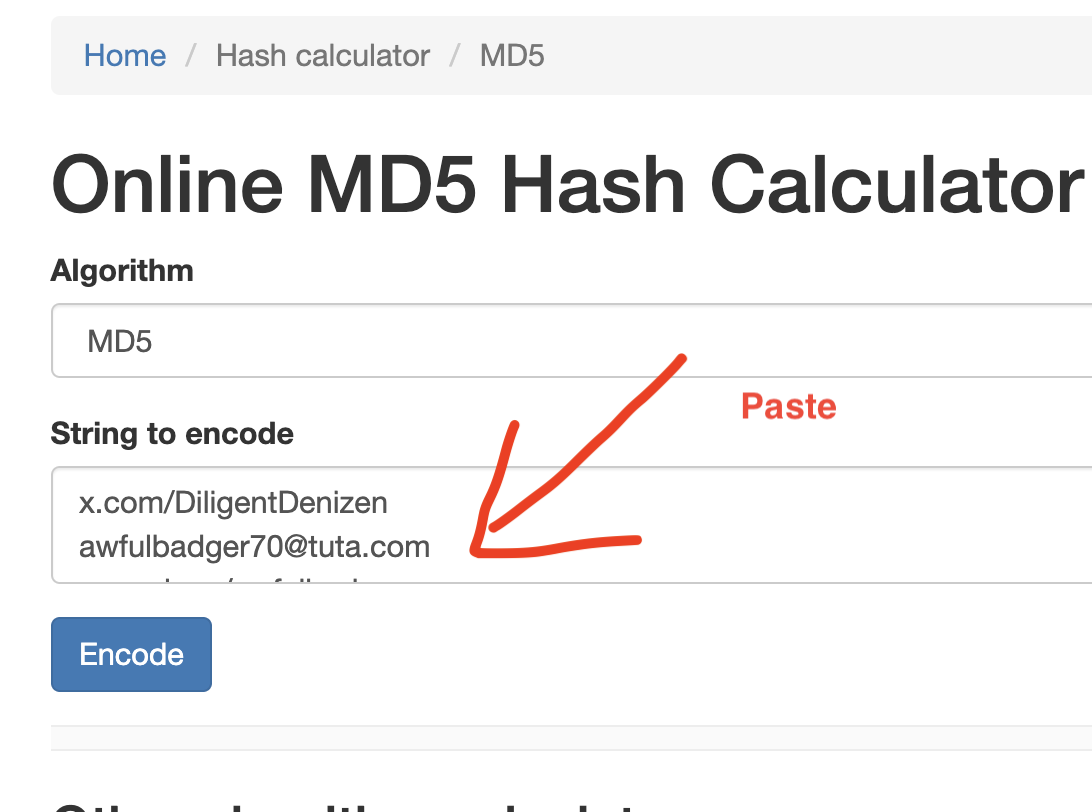
- Copy the resulting MD5 hash (‘encoded string’) carefully (no more, no less); paste it somewhere safe.
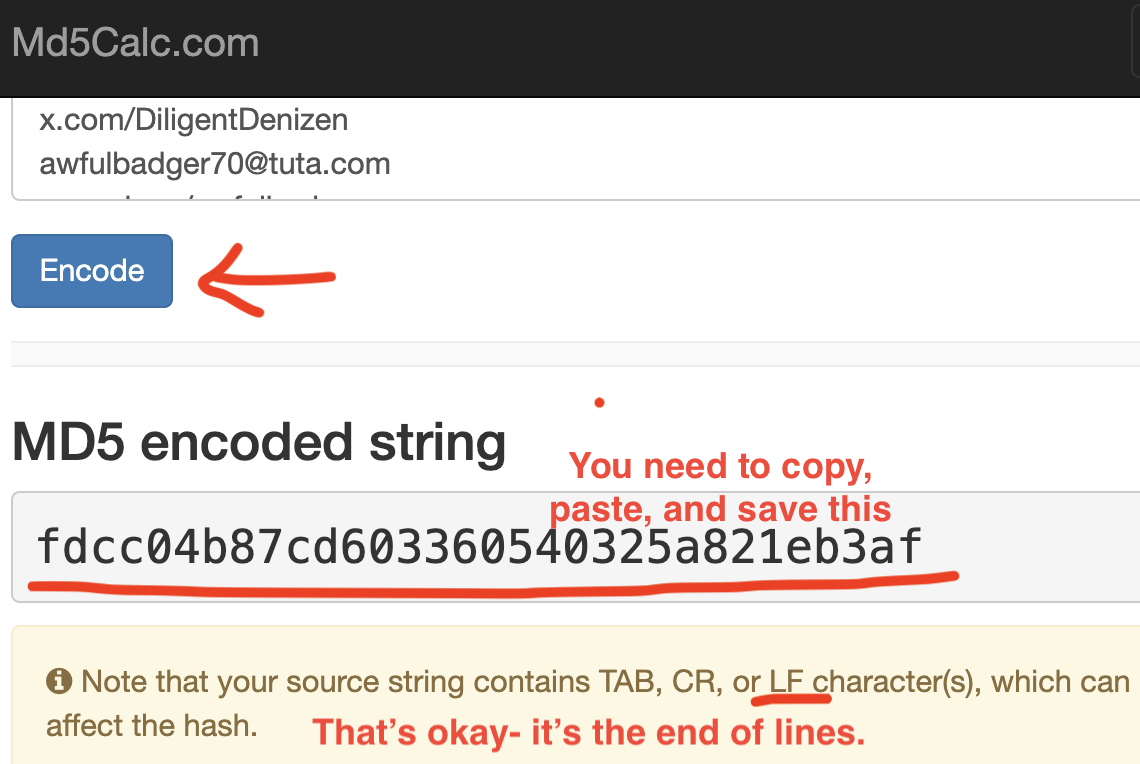
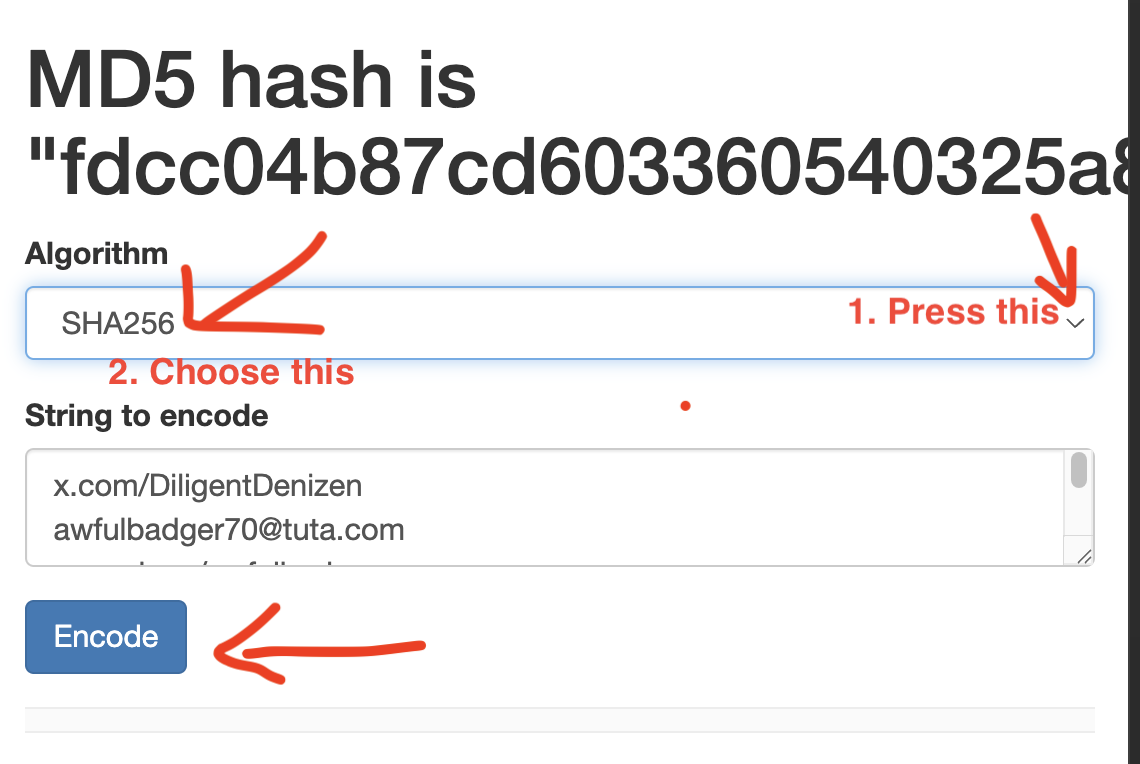
- Now do the same, but choose SHA-256 from the drop down menu:
- If you’re fine with a command line, A.I. can guide you with hashing via a command line. There’s nothing special about md5calc.com— I just find it easy to use.
4. Make an HTML file and an accompanying javascript file
- Next, you’re going to make a webpage.
- This will hold all the copyable text from above.
- Better to have a Javascript file too, so that the user gets buttons for copying.
- So, one ‘.HTM’ file and one ‘.JS’ file:
- index.htm
- copy-code.js
- I have templates at pastebin.com. Here is the HTML code, and here is the Javascript code. I also have a zip file of the templates as a download.
- Copy and paste the HTML code into your text editor and name the file index.htm.
- Copy and paste the Javascript code into your text editor and name the file copy-code.js.
- In index.htm, Do a ‘find’ function8 for ‘Needed just below’. That will show you all the places you need to '[insert]’ text.
![extract of HTML code showing comment 'Needed just below....' This is annotated with an underline, and '[insert name]' is also circled in red.](/img/aged-persona-webpage-template-neededjustbelow.png)
- You will end up with three boxes of copyable text: (1) your persona list; (2) MD5 hash; (3) SHA-256 hash.
- Save the two files in a project folder, e.g. ‘Jess-persona-verification’.
- It won’t work if index.htm and copy-code.js are not in the same folder.
5. [Optional] Upload files to Open Time Stamp
- Highly recommended, while you’re at it, is to add verification via the Bitcoin block chain.
- opentimestamps.org makes it easy.
- At the website, upload your text file from Step 2.
- You’ll get an .OTS file in return.
- People can use the .OTS file to verify the date of the original text file at the same website.
- Best to zip the two files together in a .ZIP file.
- Upload the zip file to a public file-sharing website, e.g. mega.io, and grab the URL.
- Insert the URL into the webpage template from Step 4; it is clearly labelled.
6. Upload the project folder to netlify.app
- I recommend Netlify to host your website. I tried a few, and Netlify worked the best for this project.
- Drag and drop your project folder from Step 4.
- Give the URL an appropriate name.
- Copy and save the URL.
- Visit the website and make sure it works.
7. Save webpage to Internet Archive
- The easiest step is the most important!
- At the Internet Archive, you can save your webpage.
- Paste in the URL you saved from the previous step.
- This is the ‘money shot’— this is the thing people bring up to verify your persona.
- Save the resulting archived URL, it will begin ‘https://web.archive.org/web/’
- Yes, it’s this URL that you really need. Do not link to the previous URL in Step 6.
8. Use hypertext link as ‘verify it’s me’
- Anywhere you tell people about your contact deets on the web, you can add a ‘Verify it’s me’ weblink.
- E.g. Verify it’s me (Alternate Click, and choose 'copy link address' to see how it works)
- Get A.I. to help you if unsure.
Summary and Caveats
Before I said that it was the test of time, but there’s actually a bit of proof by reputation thrown in. We all trust that the Internet Archive dates websites truthfully. There’s also the Bitcoin blockchain for the Open Time Stamps.
It seems a lot to do, but the steps are straightforward when you are doing them. My method puts more work on you, but less on your audience. People end up with one weblink to follow, maybe two.
It’s not foolproof. Someone could hijack your website or YouTube channel and point to an old forgery. This is extremely unlikely. 99.999% of Impersonation Fraud has happened in the last 72 hours. Plus, you could quickly post the correct hashes.
Folk might still doubt you. Aged Personas need to become more commonplace. It’s a boon, all the same, because we get a head start ‘aging our cheese’. Some app will probably do it a lot smoother. Me, I lean towards D.I.Y.
- Note that SimpleX usually doesn’t even have persistent URLs. It’s an option. (Return)
- OpenAlias (Return)
- Totalitarian measures might threaten this. Age verification, just becoming widespread, has the tactic of ‘get ‘em while they’re young’. Whilst not to be reckoned lightly, I think we’re too far gone along this route. (Return)
- The Quantum Computing threat is hugely overrated. Not just my opinion, backed up by provable facts. (Return)
- Unix is the standard used on the Internet. (Return)
- This is not so much for security, but rather for clarity. The hashing handles security. Putting '[end of file]’ tells your reader that you did not forget any entry. Scammers might exploit this ambiguity. (Return)
- Command + A (Mac); Control + A (Windows). (Return)
- Command + F (Mac); Control + F (Windows). (Return)